


Edge Lighting - Borderlight
4.810.41K Reviews
App Specs
- Version
- 3.3.17
- Updated On
- License
- Free
- Downloads
- 50,000,000+
- Developer
- ZipoApps
- Categories
- Personalization
- Platform
- Android
Screenshots
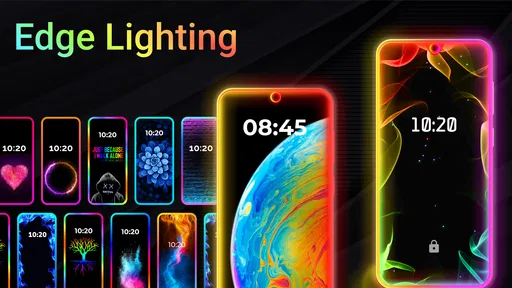
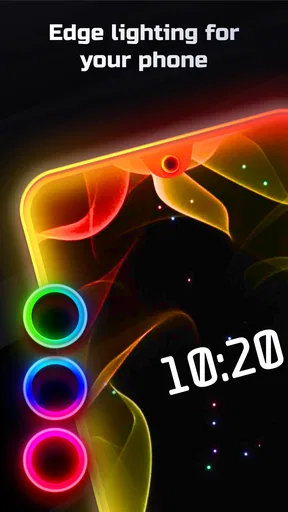
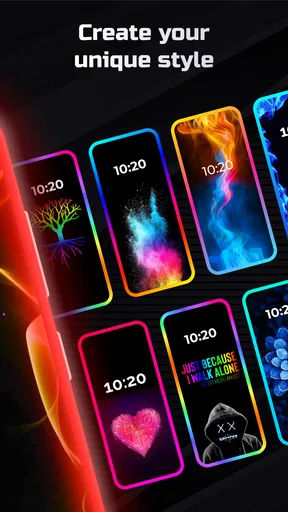
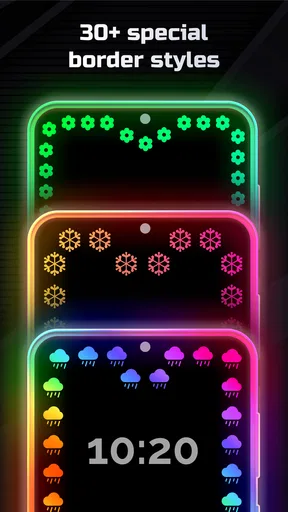
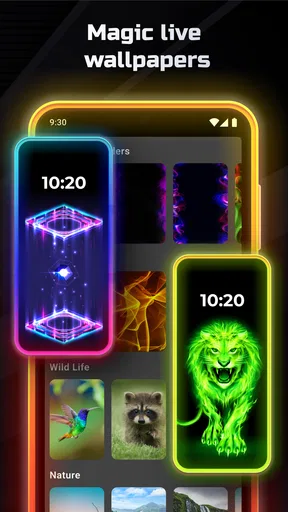
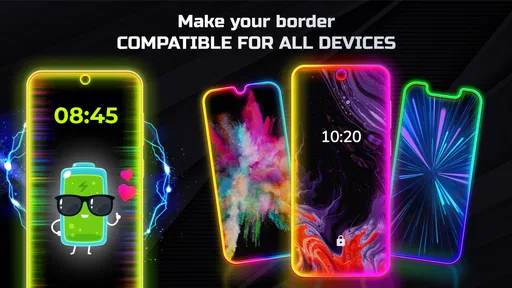
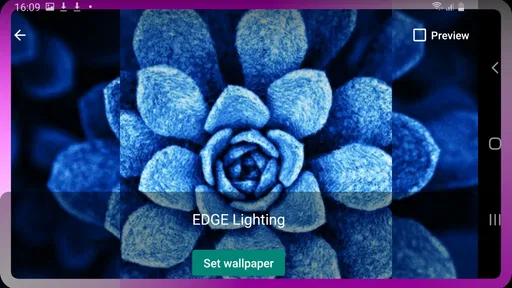
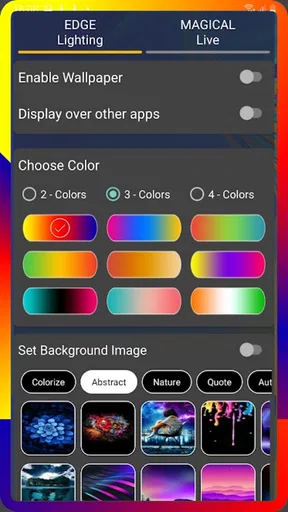
 Analysis by AppCompare
I like phone customization best when it changes the feel of a device without making ordinary tasks harder. Edge Lighting - Borderlight takes a focused approach: it frames the display with colorful light, turning a notification or a quick glance at the screen into a more noticeable visual moment. I see the appeal for anyone who enjoys tuning their wallpaper and interface, though this kind of decoration works best when it suits how you actually use your phone.
When the experience depends on connectivity
The border effect is the main attraction, but downloading and setting up a personalization app is still part of a connected-phone routine. I’d install it when I have a reliable connection, then take a moment to explore the options rather than trying to configure everything while switching between mobile data and other tasks. That makes it easier to judge the colors and motion against the wallpaper I really use.
Connectivity also shapes how I think about expectations. The lighting is a visual layer, not a reason to expect every notification or online service to behave differently. If a message arrives late because the messaging app or network is delayed, a border effect cannot fix that. I’d treat it as a way to make the phone’s screen more expressive, not as a replacement for checking the apps that matter.
Choosing a look for real mobile contexts
Color and movement are enjoyable to adjust, but the best choice depends on where the phone spends its day. A bright animated edge can be fun at home and distracting in a meeting, a quiet waiting room, or a dark bedroom. I’d start with a restrained color and a slower effect, then make it more vivid only if the screen remains comfortable to look at.
There’s also a practical difference between customizing for a desk and customizing for a phone you carry everywhere. A strong border may stand out nicely against a simple wallpaper, while a busy background can make the edges feel crowded. A useful approach is to change one setting at a time—color first, then thickness or speed—and pause to see whether the result improves the screen or simply adds more visual noise.
For someone who likes a coordinated home screen, the app can be a small finishing touch: choose a light color that echoes the wallpaper, keep the animation gentle, and use the phone normally for a day before making more changes. That everyday test is more revealing than judging the effect in a settings screen, where the novelty can make every option seem appealing.
Recovering from friction without overreacting
Screen overlays and notification behavior can vary across Android devices, so I wouldn’t assume that a setting behaves identically on every model. If the border does not appear as expected, I’d first check the app’s own setup prompts and the relevant display or notification settings on the phone. It is more sensible to test one change at a time than to toggle several permissions and lose track of what helped.
Worth Reading Before You Choose

Baby Panda World Brings Quick Play to Modern Phones, but Its Game Library Feels Busy

ESPN’s Live Game View Makes Following Close Games Easier

QuizzLand Review: A Good Fit for Short Trivia Breaks, Not Every Player

Basketball Stars: Multiplayer Is Fast, but Can It Recover When Matches Go Wrong?

WEBTOON Turns Phone Updates Into a Better Reading Routine

Link to Windows Runs on Shared Habits, Not Social Feeds
If the effect becomes distracting or seems to conflict with another screen feature, simplifying the design is a good first step: reduce the visual intensity, choose a static look, or temporarily turn the effect off while checking the phone’s ordinary behavior. This gives a clearer way to tell whether the issue is the decoration, an Android setting, or a separate app. When a problem persists, the app’s help and contact options are more useful than repeatedly reinstalling without knowing what changed.
Keeping data use and attention in balance
I’d make configuration decisions while connected to a trusted network and avoid assuming that a personalization app needs constant attention after setup. The practical question is less about chasing every available design and more about choosing a look you will still want tomorrow. A small set of deliberate adjustments is easier to live with than frequent tinkering whenever the phone feels visually dull.
Battery use is another sensible consideration for any effect that stays visible around the screen. My own preference would be to begin with a modest animation and observe the phone during a normal day, rather than judging power use from a short test. If the phone is already kept on a charger or used heavily, the trade-off may feel minor; if long stretches away from a charger are typical, a simpler visual setting is the more cautious choice.
First Impressions and Setup
Getting started with Edge Lighting - Borderlight is a breeze. After downloading it from the Play Store, the setup process is straightforward. The app doesn’t bombard you with ads right off the bat, which is already a win in my book. You’re greeted with a clean interface that’s intuitive to navigate, making it easy to jump right into the customization options.
What’s really neat is how the app walks you through the initial setup. It asks for the necessary permissions to overlay the edge lighting on your screen, which is crucial for it to work its magic. Don’t worry; it doesn’t feel intrusive, more like a polite nudge to get things rolling.
Customization Galore
This is where Edge Lighting - Borderlight truly shines—pun intended! You have a plethora of options to tweak the edge lighting to your liking. From color choices to animation styles, it’s all there. Whether you’re into subtle hues or vibrant, eye-popping colors, you’ll find something that suits your mood.
One of my favorite features is the ability to choose different lighting patterns. You can go for a static glow or opt for a more dynamic, pulsing effect. And the customization doesn’t stop there. You can adjust the speed and thickness of the light, ensuring that it complements your wallpaper and overall phone theme seamlessly.
Performance and Usability
Now, onto performance. I’ll admit, I was initially concerned about how this would affect my battery life. However, I was pleasantly surprised to find that Edge Lighting - Borderlight is pretty light on resources. It doesn’t seem to drain the battery significantly, which is a big plus. The developers clearly put some thought into optimizing it for everyday use.
The app runs smoothly without any noticeable lag or hiccups. It integrates well with notifications, lighting up your screen in style whenever you receive a message or alert. I found this particularly handy, as it adds a layer of functionality to the aesthetic appeal.
Compatibility and Support
The app is designed to work on a wide range of Android devices, and from my testing, it seems to deliver consistently across different models. That being said, it’s always a good idea to check compatibility with your specific device just to be sure.
Customer support seems solid, with a dedicated section for FAQs and a contact option for more personalized assistance. It’s always reassuring to know that help is just a tap away if you encounter any issues.
How it compares, and who should choose it
Compared with changing a wallpaper or selecting a built-in theme, this app focuses on the narrow strip around the display rather than transforming every icon and screen. That makes it a lighter-touch choice for someone who likes their current layout but wants a more distinctive frame. A phone maker’s built-in edge effects may be a better fit if you want everything managed in one system settings area; a wallpaper app makes more sense if the background itself is what you want to change.
I’d recommend trying it if you enjoy visual customization, want to coordinate an edge glow with your wallpaper, or like a subtle cue that makes the screen feel less plain. It is also suited to people who enjoy experimenting with color and animation without rebuilding their home screen. I’d skip it if you prefer a completely minimal display, find animated light distracting, or expect a border effect to replace a notification-management tool.
A realistic use case is checking a phone during a quiet evening at home: a soft static edge can make the display feel personal without turning every glance into a light show. In a shared bedroom or during a presentation, that same effect may be unwelcome, so I’d switch to a quieter setup or disable it before the situation calls for less visual activity. The point is to make the phone fit the moment, not to keep the most dramatic setting switched on everywhere.
Who it suits—and what to expect
The app is a free personalization download from ZipoApps, with optional in-app purchases ranging from $0.99 to $149.99 per item. Its Everyone content rating makes it broadly suitable from an age-rating perspective, while the purchase range is worth keeping in mind if you are browsing optional extras. I would begin with the free experience and decide whether the basic customization is enough before considering any purchase.
It has a 4.8 average from around 732,000 ratings, with roughly 10,000 written reviews and over 50 million installs. Those figures suggest that many Android users have tried it, but they do not tell me whether its visual style will suit your habits. The app was released on May 28, 2020; version 3.3.17 lists Android 5.0 as its minimum operating system, so checking your device’s software compatibility before installing is a practical first step.
One non-obvious tip is to settle on the wallpaper before fine-tuning the border. The same color can look elegant on a dark, uncluttered background and overpowering on a bright one. I’d also compare a static glow with a pulsing pattern while holding the phone at the distance I normally use; a setting that looks tasteful close up may be too attention-grabbing from across a desk.
Final Thoughts
In conclusion, if you’re looking to add a touch of flair to your phone, Edge Lighting - Borderlight is worth checking out. It offers a wide range of customization options without compromising on performance. The app is user-friendly, making it accessible to both customization newbies and seasoned pros alike.
Whether you want to impress your friends with a cool new feature or simply enjoy the aesthetic boost it provides, this app does the trick. Just remember, while it’s fun to play around with the settings, finding a balance between style and functionality is key. Overall, it’s a fun app to have in your arsenal, adding that extra sparkle to your smartphone experience.
My connectivity verdict
For me, connectivity is part of getting the app installed and making sensible use of phone notifications, but the reason to keep it is the customizable edge itself. If you want a display accent rather than a tool for managing online activity, it has a clear role. I’d give it a try with a restrained design, check how it feels in your normal routine, and keep it only if the added color makes the phone more enjoyable rather than more distracting.
Pros
- Customizable colors and effects.
- Easy to set up and use.
- Enhances visual appeal of screen.
- Works with most apps seamlessly.
- Battery-friendly with low power use.
Cons
- Limited free features; in-app purchases.
- May not support all screen sizes.
- Some animations can be distracting.
- Occasional app crashes reported.
- Ads can interrupt user experience.
FAQs for Edge Lighting - Borderlight
What is Edge Lighting - Borderlight?
Edge Lighting - Borderlight is an app that enhances your phone's display by adding colorful, customizable lighting effects around the edges of your screen. It's designed to give your device a unique and vibrant look, especially useful for notifications and personalization. It’s compatible with most Android and iOS devices.
How does Edge Lighting affect battery life?
Edge Lighting can have an impact on battery life, mainly if you use the app extensively with high brightness settings. However, the app includes options to adjust brightness and effect duration, allowing you to optimize for minimal battery consumption while enjoying the visual effects.
Is Edge Lighting - Borderlight customizable?
Yes, Edge Lighting - Borderlight offers extensive customization options. You can choose from various colors, patterns, and effects to suit your preferences. The app also allows you to adjust the speed and thickness of the lighting, making it easy to create a personalized look for your device.
Does Edge Lighting support all devices?
Edge Lighting - Borderlight supports most Android and iOS devices with edge displays. However, functionality might vary depending on your phone model and operating system version. It’s recommended to check compatibility on the app store page before downloading to ensure it works properly on your device.
Is Edge Lighting - Borderlight free to use?
Edge Lighting - Borderlight is available for free with basic features. However, it may offer in-app purchases or a premium version for advanced features and additional customization options. The free version includes ads, which can be removed by upgrading to the paid version.


